How to List Multiple Apartments on Dwelns (All at Once)
Got more than one apartment to list? You don't need to do this one by one.
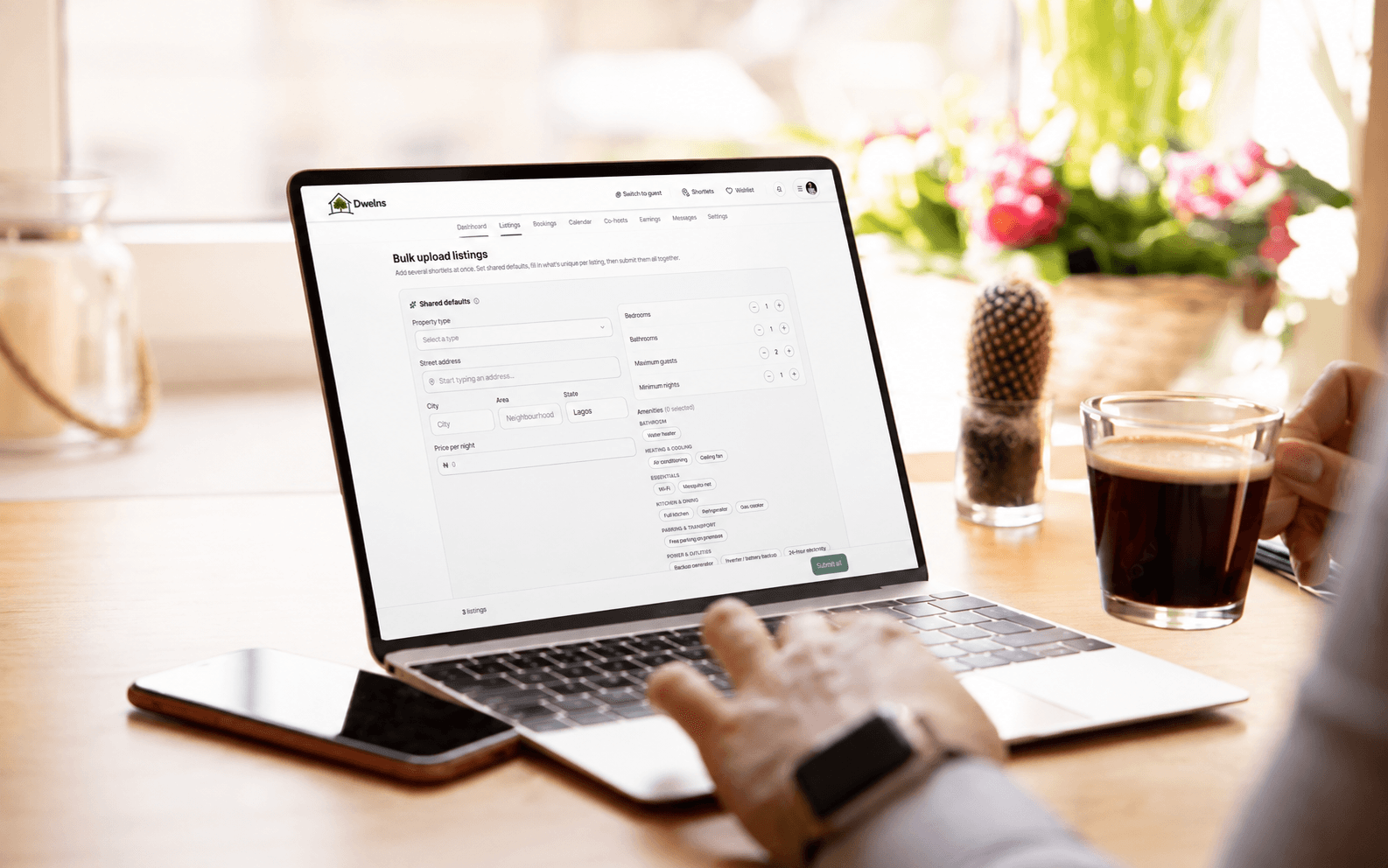
Dwelns lets you bulk list multiple apartments on a single page — so instead of repeating the same steps for every property, you fill in your shared details once, then add what's different for each place. Fast, simple, and built for hosts managing more than one shortlet.
Here's how to do it in 4 easy steps.
Step 1: Fill in Your Shared Details
At the top of the page, under Shared Defaults, fill in the information that applies to all — or most — of your apartments:
-
Location & Type: Property type, street address, state, city, and area
-
Basic Rules: Price per night, bedrooms, bathrooms, maximum guests, and minimum stay
-
Amenities: Check off common features like 24/7 power, WiFi, air conditioning, or parking
💡 Time-Saving Shortcut: "Apply to All Rows"
You don't have to re-type the same information for every apartment. Once you've filled in your shared details, click "Apply to All Rows." This instantly copies your location, price, and amenities into every apartment slot below. You can still tweak individual apartments afterward if one is slightly different.
Step 2: Add What Makes Each Apartment Unique
Scroll down through your apartment slots (Listing 1, Listing 2, Listing 3...) and fill in the details specific to each one:
-
Title & Description: Give each apartment a clear, catchy name — like "Luxury 1-Bed in Ikate" — and a short description of what makes it special
-
Quick Tweaks: If one unit has a different price, an extra bed, or a unique feature, simply update that specific box
This is where your listings go from identical to individually searchable — helping each apartment get found by the right guest.
Step 3: Upload Photos for Each Apartment
Every apartment needs its own set of photos — no shortcuts here.
-
Upload at least 5 photos (up to 10) for each individual apartment
-
Make sure the photos match that specific apartment's exact rooms and layout
Guests want to know exactly what they're booking. Accurate photos build trust and reduce cancellations.
💡 Time-Saving Shortcut: Add, Duplicate, or Remove Listings
Manage your apartment rows quickly with these tools:
-
Duplicate: Clone an existing apartment row along with all its filled-in details — perfect for near-identical units
-
Remove: Delete a slot you don't need
-
Add Another Listing: Click this at the bottom of the page anytime you need to list more apartments
Step 4: Submit All Listings Together
Check the status badge on each apartment row. Once every listing shows "Ready to Submit" — meaning it has a title, location, price, amenities, and at least 5 photos — click submit.
All your listings go for review at the same time, so you can get multiple apartments live without repeating the process from scratch.
Want to Bulk List Your Apartments Right Now?
Stop listing one apartment at a time. If you're managing multiple shortlets, this is the faster way to get them all earning.
👉 Start your bulk listing on Dwelns now
Only Have One Apartment?
No problem — listing a single apartment on Dwelns is just as quick and simple.